So while building this Umbraco site I wanted to use a custom log4net appender, in this case I wanted to connect log4net to logentries to be able to track my logs online. Normally when wanting to use log4net and send to logentries u just install a Nuget package and setup the appender in the log4net.config. But since log4net comes bundled in Umbraco in a none nuget-package kind of way, when installing the appender package my site crashed.
Giving me this amazing error…
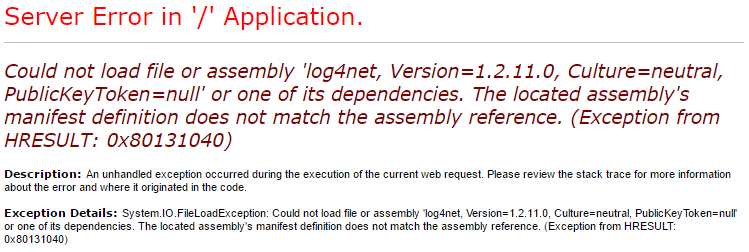
After a bit of searching, I found out that Umbraco, out of the box, doesn’t play nice with log4net when installed from Nuget. But there was a way to solve this, so here’s a little guide how to use the log4net logentries appender, LeAppender with Umbraco.
Fixing the error
First we need to make sure the umbraco log4net dll-file is added to our project.
- Get a version of log4net.dll file umbraco is using by going to the umbraco download page and download the version of umbrao that the site is using.
- Extract the file and add it to your VS project.
- Rename the file to something other than log4net.dll, in this example I renamed mine to log4net.umbraco.dll
- Right-click on the file and open properties for the file set Build Action: None Copy to Output Directory: Copy if newer
- Now when building the log4net.umbraco.dll file in this case should end up under bin\Libraries\log4net.umbraco.dll After these steps add the following code to the web.config-file, this enabled the dll-file.
Installing Logentries Appender
To installing the latest version of Logentries log4net appender, all you have to do is install the nuget-package with the command Install-Package logentries.log4net this adds Logentries Target library and will also automatically install the log4net package as a dependency.
Configure log4net to use Logentries Appender
To start using the appender open the log4net.config-file, this is by default found at config/log4net.config.
Add the following code to your log4net.config-file, this enabled log4net to find the appender.
1<appender name="LeAppender" type="log4net.Appender.LogentriesAppender, LogentriesLog4net">2 <immediateFlush value="true" />3 <debug value="true" />4 <useHttpPut value="false" />5 <useSsl value="false" />6 <layout type="log4net.Layout.PatternLayout">7 <!-- The below pattern has been carefully formatted and optimized to work well with the Logentries.com entry parser. For reference see https://logentries.com/doc/search/. -->8 <param name="ConversionPattern" value="%d %logger %level% %m%n" />9 </layout>10</appender>
Now we want to add the log token, this can be done by either adding it to the appender in log4net.config
1<appender name="LeAppender" type="log4net.Appender.LogentriesAppender, LogentriesLog4net">2 <token value="bb61600f-f766-451e-b55f-9204f536a79f" />3 ...4</appender>
or by adding it to web.config
1<appSettings>2 <add key="Logentries.Token" value="bb61600f-f766-451e-b55f-9204f536a79f" />3</appSettings>
If the settings doesn’t seem to load you might need to append the following line to AssemblyInfo.cs for log4net to parse the config line.
[assembly: log4net.Config.XmlConfigurator(ConfigFile=”[config filename]”, Watch = true)]
If you want you can replace the default appender by changing the root -> appender-ref ref from AsynchronousLog4NetAppender to LeAppender
1<root>2 <priority value="Info"/>3 <appender-ref ref="LeAppender" />4</root>
If you want to know more about the logentries setup. You can find the full documentation about Logentries Appender here.
Testing the logger
Here is an example class how that send two log messages at startup, one on debug level and one on info level.
1public class StartUpLogger : ApplicationEventHandler2{3 private static readonly ILog Log = LogManager.GetLogger(MethodBase.GetCurrentMethod().DeclaringType);45 protected override void ApplicationInitialized(UmbracoApplicationBase umbracoApplication,6 ApplicationContext applicationContext)7 {8 Log.Debug("This is a DEBUG message");9 Log.Info("Here is a INFO message");10 }11}